Categorize and organize
Clear the Review page, let rules do the filing, search by amount, and organise with tags, Books, splits, refunds and receipts.
Review#
Everything waiting on you lives on one page: Review, near the top of the sidebar. The badge is the count. It has two queues.
- Categorize – rows with no category yet, each with a suggestion.
- Suggestions – things Orbiq noticed and will not do without you.
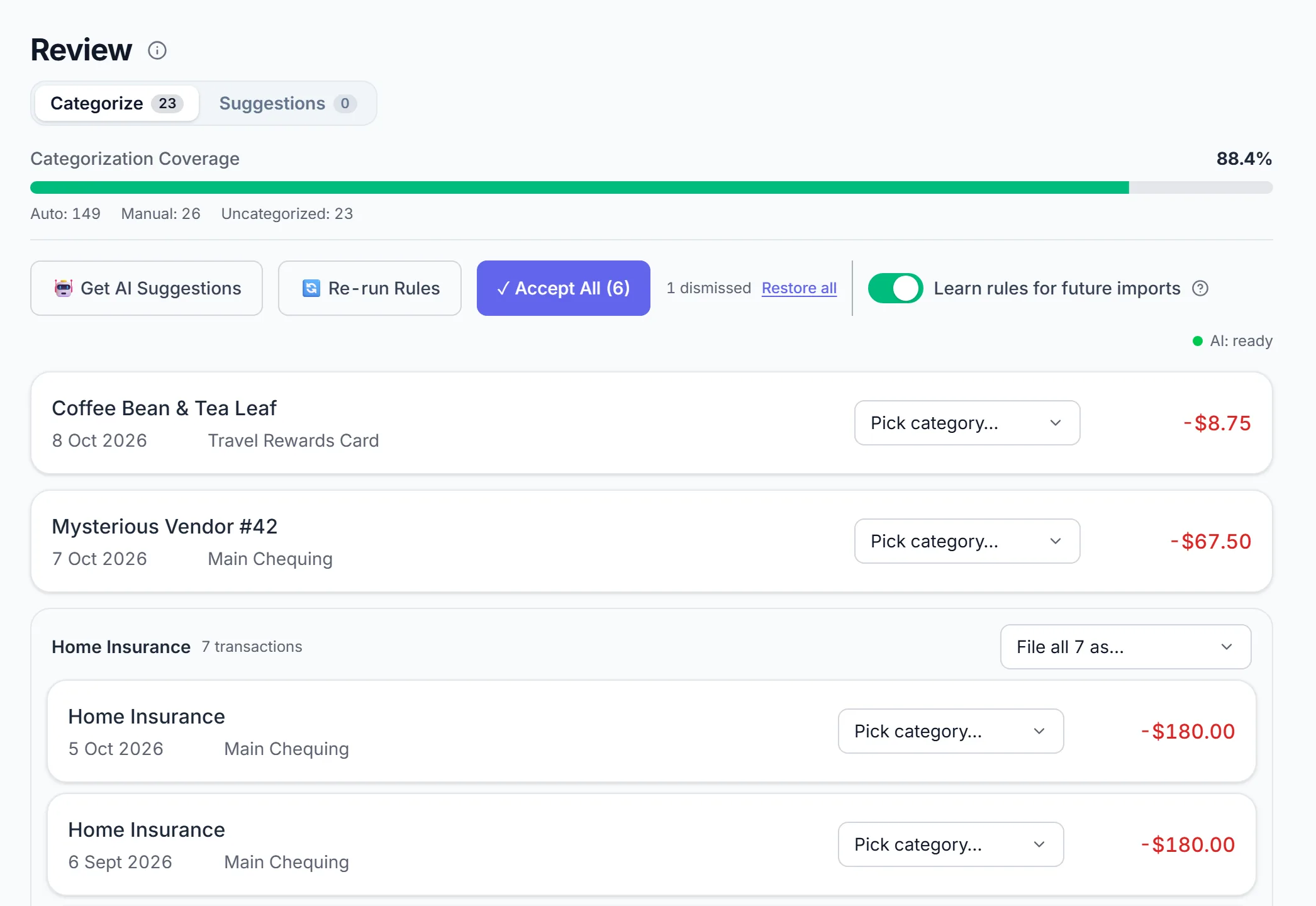
Categorize. Pick a category and the row is filed. Rows from one merchant sit together, and File all N as… files the group in one go. A suggestion (from a rule, or from how you filed that merchant before) shows on the row: accept it, or dismiss it. Accept All takes every suggestion at once, and Undo puts a row back.
- Get AI Suggestions asks the AI about what is left.
- Re-run Rules files rows your newest rules now match.
- Learn rules for future imports turns what you file here into rules, so the next import files itself.
- On the web, j k move between rows, a accepts and c picks a category.
Suggestions come in kinds, and you can filter to one:
| Kind | What it asks |
|---|---|
| Moves between your accounts | Are these two rows one transfer? Pairing them keeps both out of income and spending. |
| Better categories | A category that fits more of your rows than the one they have. |
| Possible duplicates | The same transaction twice, for example a typed charge the bank also sent. |
| Paid back | A payment that looks like it settles a household split. |
| Money sent abroad | A transfer out with no matching arrival yet: type what was received. |
| Refunds | A credit that looks like it reverses an earlier charge. |
| Card questions | Does this store take a card you hold? |
| Book conflicts | A rule tried to put a row in a second book. |
Nothing in Suggestions is applied on its own; each waits for your yes or no.
How categorizing works#
Categories drive budgets and every spending figure. Orbiq files each new row in layers, fastest first:
- Your rules. A row that matches a rule is filed at once, with no AI.
- Patterns confirmed across Orbiq. Merchant-to-category patterns are shared only after they pass safety thresholds, and are stripped of personal details first.
- AI for what is left. It returns a category with a confidence. Unsure answers, especially "Other", go to Review rather than being applied quietly.
What reaches the AI is scrubbed first: names, account numbers, addresses and exact amounts are removed or blurred. It only needs the shape of the merchant to pick a category.
Many rows at once. Running suggestions on a large batch can hit the AI provider's rate limit. Orbiq then shows how many were done, how many matched and how many are left, so you can carry on after a short wait.
Bulk. On Transactions, select rows (or x on the keyboard) and categorize them together from the bar that appears.
Your categories#
On Categories, choose New category and set its name, icon and class:
| Class | For |
|---|---|
| Expense | Spending. Counts toward budgets. |
| Income | Pay and other money in. |
| Investment | Capital you move into investments. Kept apart from spending. |
| Investment Income | Dividends, interest and payouts. Kept apart from the capital you put in. |
| Transfer | Moving your own money. Never income or spending. |
To keep a category out of dashboard totals, add it under Settings → Dashboard exclusions.
Rules#
Rules file the same merchant the same way every time, with no AI. Open Rules and choose New rule, or start from Rule templates.
- Simple mode – a keyword and a category: "Netflix" → Entertainment.
- Advanced mode – nested conditions with AND / OR, and more actions than a category. Switching back to Simple clears the advanced parts, so Orbiq asks first.
Before you save, Orbiq shows which rows the rule would change. Each rule also has:
- Stop processing other rules – end the run at this rule.
- Shadow mode – log matches without changing anything, to try a rule safely.
- Run on transaction updates – re-check a row when it is edited.
- Delete after first match – a one-off.
Rules can sit in folders. Clean up re-runs your rules over rows you set by hand, and says first that it can overwrite them.
When your rows show a pattern, Orbiq offers it once, in place: "You've put Corner Café in Coffee 4 times. Make it automatic?" Turn these suggestions off in Settings → Help & guides.
Search#
Search on Transactions answers as you type, including by amount: type the figure off a statement and it finds the row, money in or out. Pick a quick filter (category, card, tag) and the list shows what the matching rows add up to, and every day carries its own total.
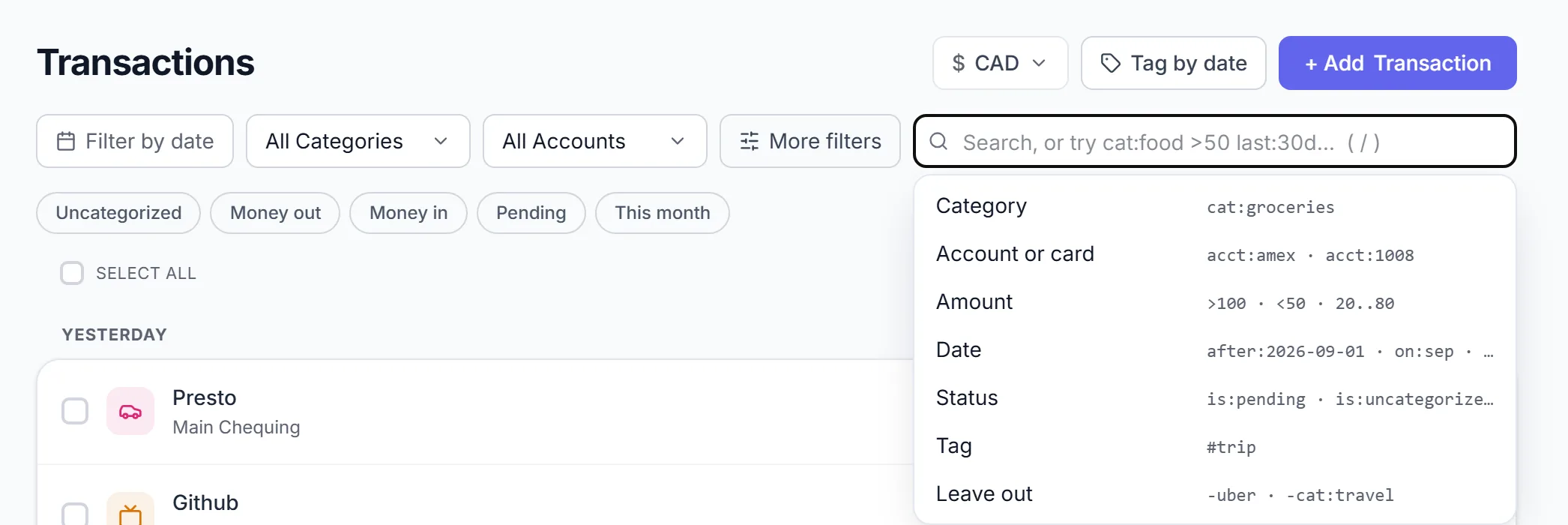
Shorthand, if you want it. Suggestions write it for you, and a plain word still searches as it always did.
| Type | Finds |
|---|---|
cat:groceries | rows in a category |
acct:amex or acct:1008 | rows in an account or card, by name or last digits |
>100, <50, 20..80 | amounts above, below or between |
last:30d, after:2026-09-01, on:sep | dates |
is:pending, is:uncategorized, is:split | status |
#trip | rows with a tag |
-uber, -cat:travel | leave rows out |
Tags#
Tags are coloured labels that sit beside a category, never instead of it: a trip, a renovation, a client. A row keeps its category and can carry as many tags as you like.
- On Tags, choose New tag, name it (say bali-2026) and pick a colour.
- Tag rows one at a time from the row, in bulk from the selection bar (Apply tag), or by date range: Tag by date on Transactions tags every matching row in one step.
- Filter Transactions by tag, or type
#bali dinnerto find rows tagged bali that also say "dinner". - In Explore, filter by tags or group by tag.
- On Tags, tap a name to land on its rows, with what it has added up to. ✎ opens its one settings sheet: name, colour, what it counts as, and delete. Deleting a tag removes it from every row.
Grouped by tag, a row with two tags counts in full under each, so the groups can add up to more than you spent. The chart says so.
Tags also take budgets: see Budgets.
Books#
A work trip you will be paid back for, a side business on your own card, a rental: it runs through your accounts but it is not your household's spending. Books keeps it out of your budget without hiding it.
Books is a Lab. Turn it on in Settings → Features & navigation.
What a tag counts as#
| Counts as | Effect |
|---|---|
| Normal | Counts everywhere, like any tag. |
| Outside budgets | Still your spend and still in charts, but off your monthly budgets. A one-off trip does not eat your Dining budget. |
| Separate book | Not your money. It leaves Personal on both sides: the charges and the money paid back. |
Before you save, Orbiq shows what moves. Changing what a tag counts as re-reads your history, and Undo puts it back.
Fill a book, and switch#
- Fill it by tagging one row, by selecting a batch and choosing Move to book, or by setting a card to Tag every transaction. Orbiq asks before it tags rows already on the card.
- Switch with the book menu at the top of the screen. Dashboard, charts, transactions, budgets and Ask Orbiq then show only that book. Orbiq always opens on Personal.
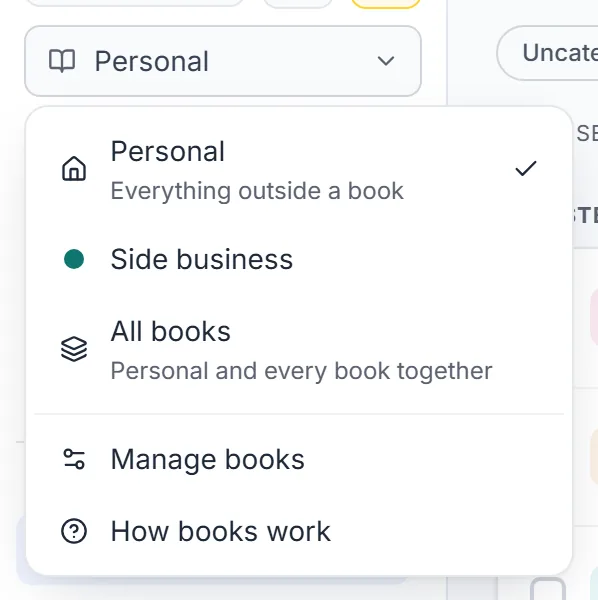
- Nothing leaves quietly. A budget that leaves a tag out says so ("#trip left out"), and tapping it opens exactly those rows. Paying the business card from chequing shows as Owner in, not spending.
What Books does not change. Cash never splits: balances, the forecast and the cash calendar stay whole, because it is the same bank account. Alerts, home-screen widgets, the monthly email and the household view stay on Personal. A row sits in one book at most. Books is not bookkeeping: no invoices, tax filing or profit and loss.
Split and spread#
Two tools make one charge tell the truth.
Split across categories#
One receipt that is really several things: groceries, a gift, cleaning supplies.
- Open the row and choose Split.
- Add a line per part with its amount and category. The parts must add up to the total.
- Save. The bank row stays one row; budgets, trends and charts count the parts, never the parent twice.
Spread over months#
An annual insurance premium or a flight paid in one go.
- On the row, choose Spread over months (adding a new one, Spread … over months).
- Choose how many months. Orbiq shows the amount per month.
- Save. Budgets and pacing see monthly instalments instead of one spike.
Splitting a bill with someone else is different: see Household and splits.
Refunds#
A refund should cancel the purchase, not read as income. Open the refund and choose Link refund, then pick the purchase it reverses. It files under that purchase's category.
Orbiq suggests likely matches in Review (Refunds) but never links them on its own. Whether a refund counts in the month of the purchase or the month it arrived is your choice, under Settings → Refund timing.
Receipts#
Photograph a receipt or attach a PDF right on the transaction.
- Web Open the row and choose Attach under Receipts.
- iPhone & Android Open the row and add a photo or a file. The phones read receipts on the device.
Location data is removed from photos before they are stored, and every view is a fresh, short-lived link issued only to you. Orbiq keeps no other copy: backups include receipt details, not the files.
Something missing or unclear? [email protected]