Start
Sign in, look around with sample data, follow Get started, install the apps, and get around fast.
First steps#
- Sign in with Google or Apple. No password to create, no waitlist.
- Bring in your transactions: a statement file, a screenshot of your banking app, or a bank link. See Accounts and import.
- Open Get started and work down the list. Each step says what it is for and opens the screen that does it.
Not ready to bring in your own money? Try a sample book first and clear it in one tap when you are done.
Getting access#
Orbiq is open to everyone, with no country restriction. Go to orbiq.online and sign up with a Google or Apple account. You need a modern browser on a phone, tablet or computer, or the iPhone or Android app.
New accounts start a free trial, no card needed. See Plan and subscription.
Questions while you sign up: [email protected].
Sample data#
Sample data fills your account with sample accounts, transactions, budgets, goals and bills in your home currency, so you can see every screen working before you import anything.
- On the first screen after sign-up, choose Try a sample book first. Later, it is in Settings → Demo data. iPhone & Android It is in Settings on the phones too.
- Look around. Imports are paused while sample data is on, so nothing of yours mixes in.
- Ready for your own? Clear sample data on the Get started page, or switch it off in Settings. Only the sample rows go.
Get started's steps start over when you clear sample data, so the checklist follows your own data, not the sample.
Get started#
Get started is one page of steps that set Orbiq up, in the order a new budget needs them. It sits at the top of the sidebar for your first 60 days, and is always in the help menu (the ? beside your name at the foot of the sidebar) and in Settings → Get started.
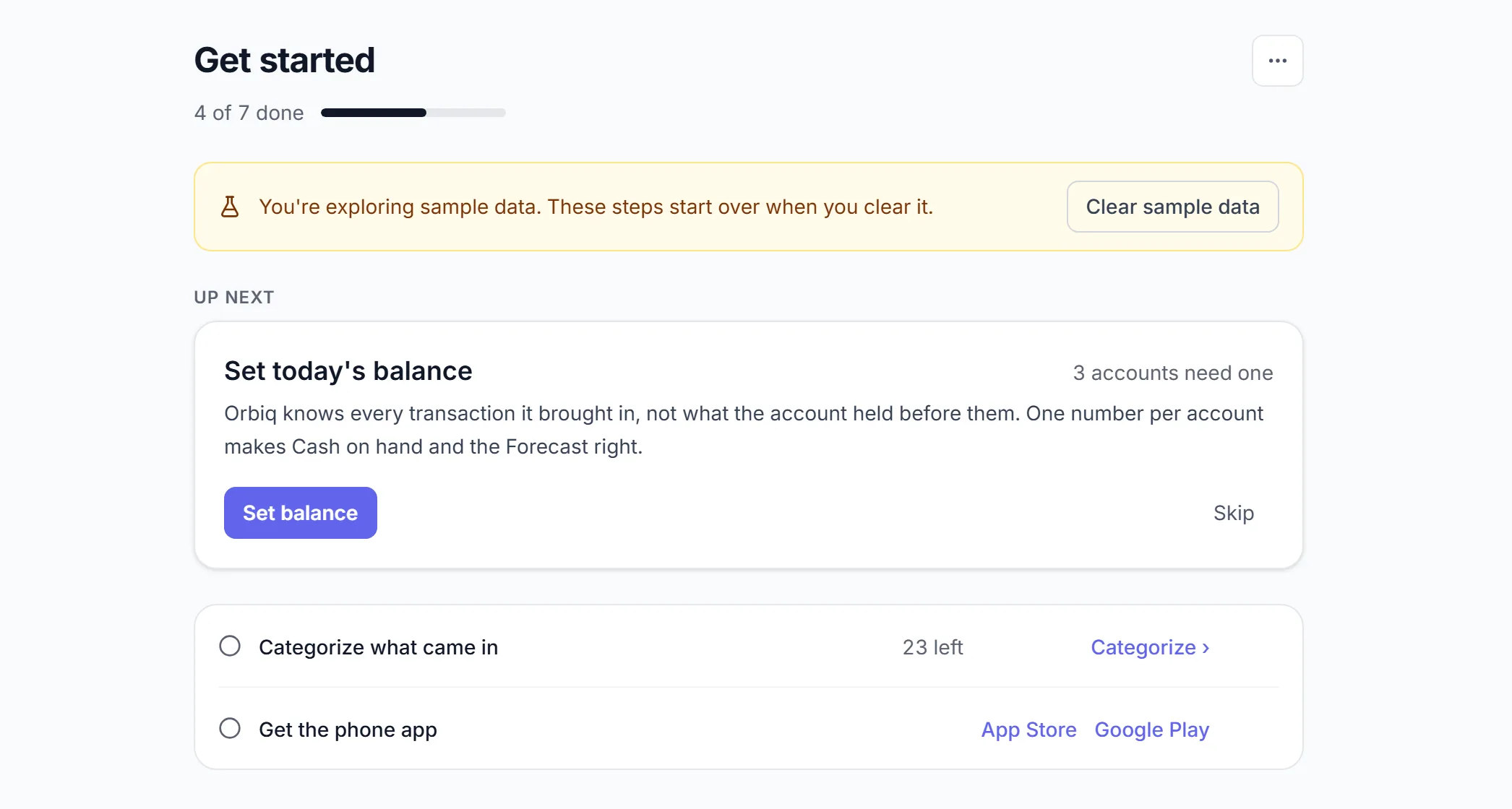
| Step | Done when |
|---|---|
| Bring in your transactions | Your first rows exist, by import, bank link or by hand. |
| Add your other country's account | An account in a second currency exists. Shown to accounts created from October 9, 2026, unless you left "Money across borders" unpicked at sign-up. |
| See what a transfer really cost | A transfer between your two currencies is paired. Shown once you have two. |
| Set today's balance | Each cash account has a balance from your bank. |
| Categorize what came in | Nothing is waiting in Review's Categorize queue. |
| Make your first plan | You have a budget. |
| Get the phone app | You have signed in on a phone. |
- A step ticks when the thing exists, not when a button was pressed, and a tick stays.
- Skip any step. It leaves the count, and you can bring it back.
- When everything is done the page says You're set up. To bring it back to the sidebar and dashboard, switch on Show Get started in Settings → Get started.
Signing in#
Orbiq signs you in with your Google or Apple account. There is no Orbiq password, and Orbiq never sees your Google or Apple password.
- Go to orbiq.online and choose Continue with Google or Sign in with Apple.
- Pick the account you signed up with and approve.
- You land on your dashboard.
Signing out. Use the Sign out button beside your name at the foot of the sidebar. The session ends on the server, so a copied session stops working at once.
Install the apps#
The native apps are the best way to use Orbiq on a phone: the App Store for iPhone and iPad, and Google Play for Android. They add home-screen widgets, on-device receipt reading, haptics and local bill reminders. Sign in with the same Google or Apple account and everything is there.
A few desk-sized views stay on the web: Remittances, Investments and the roadmap.
Install the web app instead#
Orbiq is also a web app you can install, with its own icon and window.
- iPhone or iPad: open orbiq.online in Safari, tap Share, then Add to Home Screen.
- Android: open orbiq.online in Chrome and tap Install, or the ⋮ menu, then Add to Home Screen.
- Desktop (Chrome or Edge): click the install icon in the address bar, then Install.
After a few visits Orbiq offers to install itself; dismiss it and it waits 14 days before asking again.
Offline. Without a connection Orbiq shows a banner and keeps your last-loaded data on screen. Imports and syncs resume when you are back online.
Get around faster#
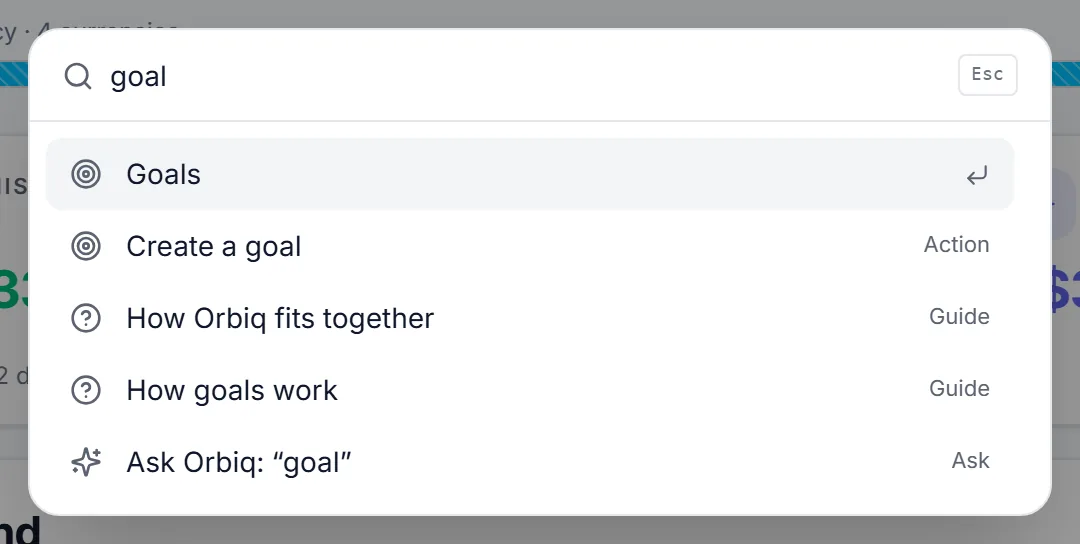
Web Press ⌘K (Ctrl+K on Windows) on any page to jump to a bill, goal, account or category by name, or to create a budget, bill or account.
Press ? for the shortcuts that work on the page you are on. The list is built from the page, so it is always current.
| Where | Keys |
|---|---|
| Everywhere | ⌘K palette · ? shortcuts · Esc close |
| Most pages | n adds one: a transaction, budget, goal, bill, rule, tag, category or account |
| Transactions | / search · j k next and previous · x select · Shift+↓ extend · e edit · c categorize · t tag · f more filters |
| Review, Categorize queue | j k move · a accept the suggestion · c or Enter pick a category |
| Budgets | [ ] previous and next month |
| Rules, Settings | / search |
| Ask Orbiq | / type a question · n new chat |
Dates take typing. Every date field understands yesterday, Mar 14, 2019-05-01 and -1y; range fields add 30d, ytd, 2019 and mar 2025. All-number forms like 10/2/2026 are refused on purpose, because day and month order differs between countries.
Something missing or unclear? [email protected]