Dashboard and charts
Read the dashboard, arrange it your way, build your own charts in Explore, and put Orbiq on your home screen.
Dashboard#
The dashboard is the month at a glance, and every figure on it follows the Currency Lens and the book you are in.
| Widget | Shows |
|---|---|
| Headline figures | Income, spending, net and what is left this month. |
| Spending by category | Where the month's money went. |
| Budget pace | Which budgets are on track, at risk or over. |
| Spending pace | Faster or slower than usual for this point in the month. |
| Unusual charges | Charges well above your usual for that category. |
| Top merchants | Where most of the money goes. |
| Monthly trend | Month against month. |
Change the period at the top. Tap any bar, slice or figure to see the rows behind it.
Arrange it your way#
Web Choose Edit layout. The dashboard becomes a canvas: drag a widget by its grip, resize it from its corner, and it snaps to a grid. Keyboard works too: focus a card and use the arrow keys. Replace swaps a widget for another; Save keeps the layout, Cancel drops the changes.
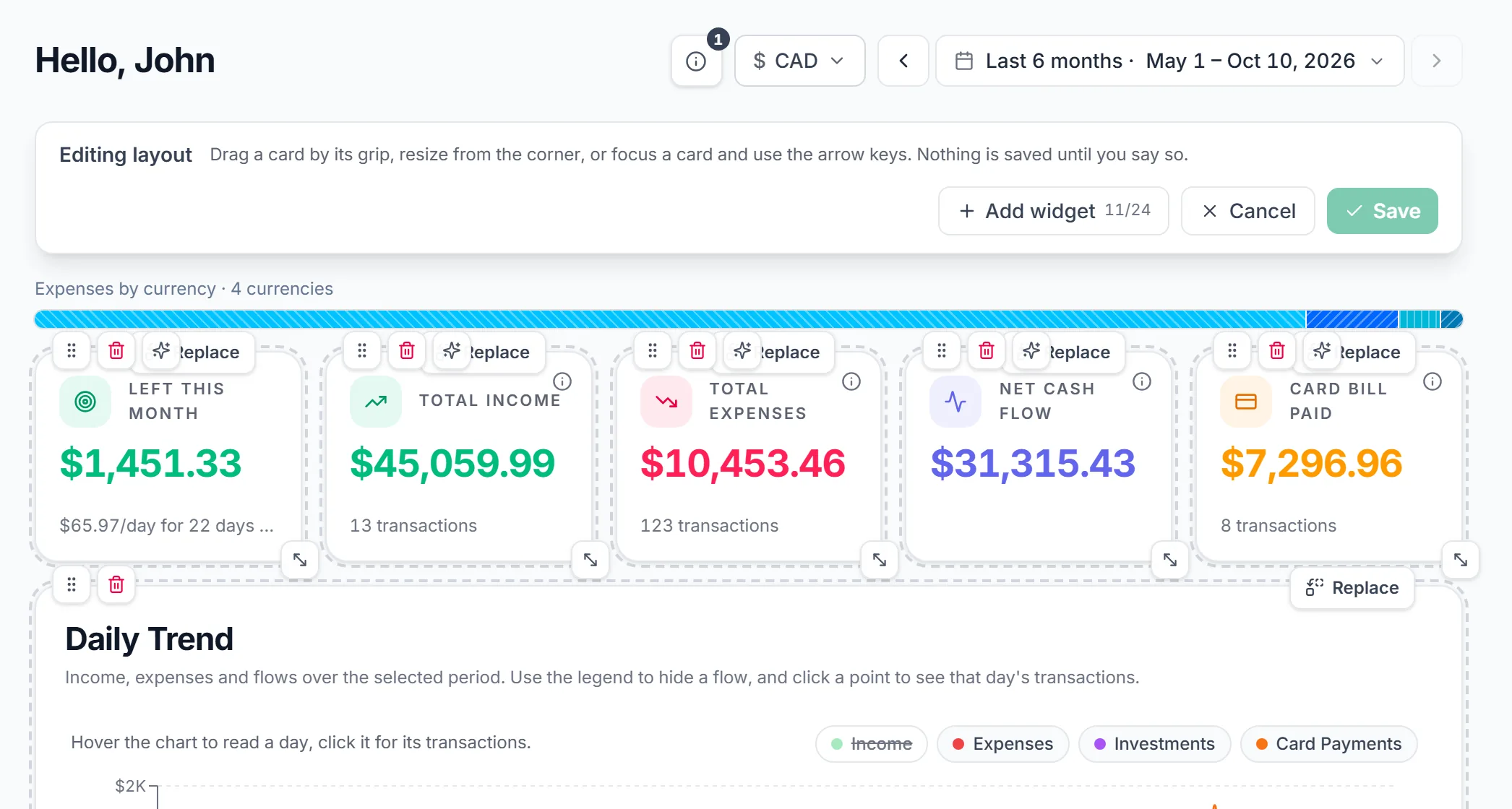
- Add widget opens the library, with a live preview of each.
- The row of headline figures takes from one tile to ten.
- Reset to default puts it back.
Your arrangement follows you to the phones, reflowed into reading order.
Explore#
Explore is for the questions the dashboard does not answer.
- Open Explore and start from a ready chart (Spending by Category, Cash Flow Trend, Income vs Expense and more), or build your own.
- Pick the measure, the period, and how to group it: by category, account, month, type, merchant or tag.
- Choose the chart: bar, stacked bar, line, area, pie or radar.
- Save chart to keep it. Saved charts update as rows arrive.
Tap any bar, slice or point for the rows behind it, or Ask about this to open Ask Orbiq on the chart.
Home-screen widgets#
iPhone & Android Add Orbiq widgets from your phone's widget picker: Budget Pace, Categories, Bills, a Goal you pick, Needs Attention, and a household Split balance.
- iPhone On iOS 18, add the Quick Add control to Control Center, the Lock Screen or the Action button.
- Android Long-press the Orbiq icon for Quick add and your top budgets and goals.
Widgets always show Personal, whichever book you were last in.
Hide amounts#
One switch masks the figures on your dashboard and lists, for when you show someone a chart: the eye at the top of the sidebar (or ⌘K, Hide amounts). iPhone & Android It is in each screen's ⋯ menu. It is a display setting on that device, not a lock. On the phones, the app lock is the lock.
Something missing or unclear? [email protected]