Accounts and import
Add your accounts, set today's balance, and bring in statements, screenshots, bank files or your history from YNAB and Lunch Money.
Accounts#
Every transaction lives in an account. Make one for each bank account and card.
- Open Accounts in the sidebar and choose New account.
- Give it a name, a type (Chequing, Savings or Credit Card) and the currency the bank keeps it in.
- For a credit card, add its credit limit, statement day, utilization target and payment due day. They drive card reminders.
You can also make an account on the spot while importing a file. The account's currency matters: every row keeps its own amount, and your totals read in your home currency. See Currencies.
Set today's balance#
Without a starting point, "cash" would only be the money that moved since your first import. Tell Orbiq what your bank says today and it works out where the account started.
- On Accounts, under the account's balance, choose Set from bank balance (later, Update from bank). Orbiq asks What does your bank say? (for a card, What do you owe on this card?).
- Type the balance as your bank shows it today.
Orbiq subtracts everything it has imported and keeps the opening balance itself. On accounts linked through Orbiq Connect, pending card holds stay out of your balances until they settle.
Import statements#
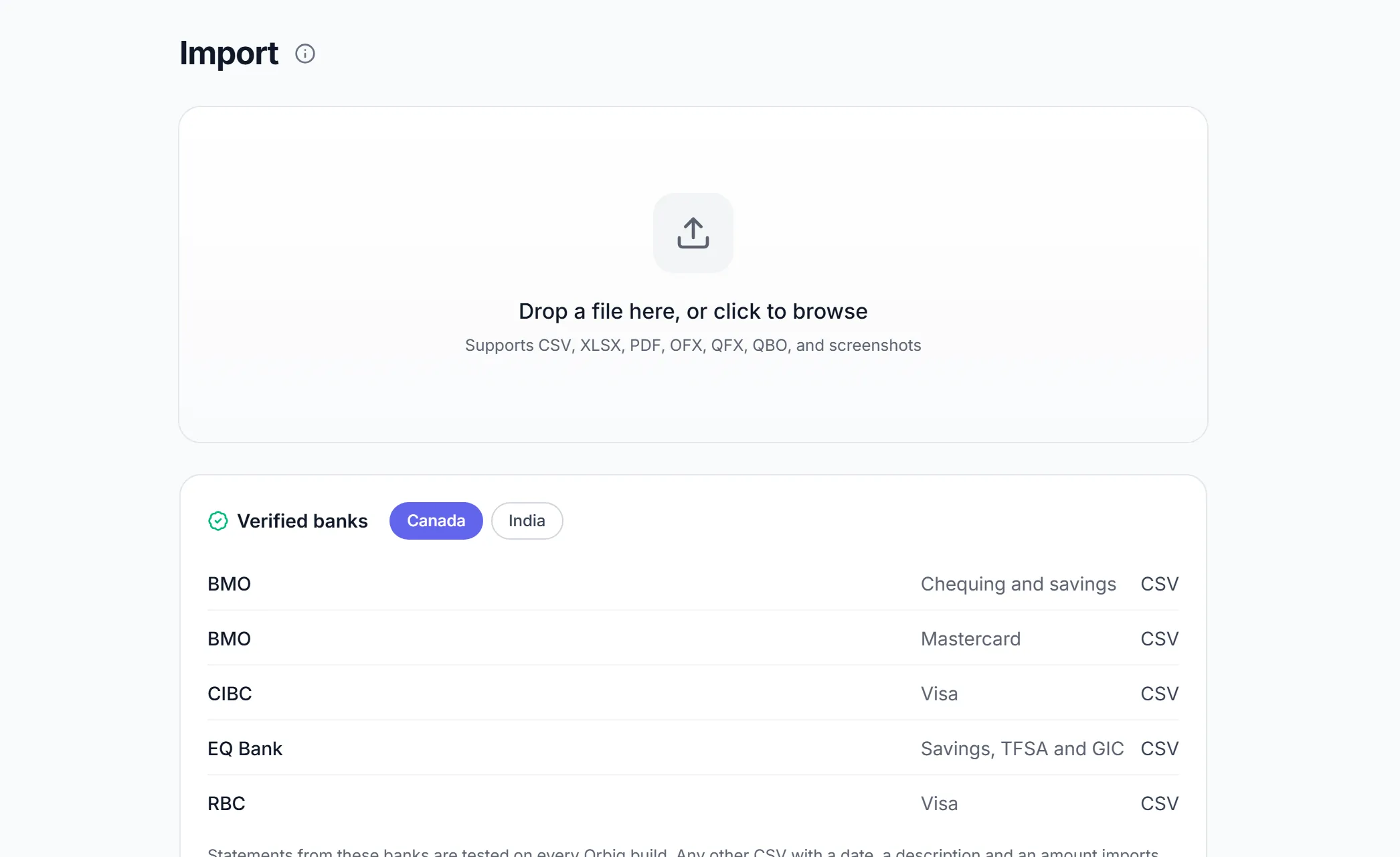
You never need a bank link. Export a file from your bank's website, or screenshot your banking app, and drop it on the Import page. Orbiq recognises the format and opens the right flow, so your bank password never comes into it.
Formats at a glance#
| Format | Files | Best for |
|---|---|---|
| CSV or Excel | .csv, .xls, .xlsx | Most banks' "download transactions" button |
| PDF statement | Banks with no export. Password-protected PDFs unlock on your device. | |
| Bank file | .ofx, .qfx, .qbo | "Download to Quicken" exports. Already structured, no column mapping. |
| Screenshot | .png, .jpg, .webp, .heic | Your banking app, or a photo of a paper statement |
Orbiq reads statement text the way each bank writes it, including Interac, SEPA, Faster Payments and Indian codes. The banks tested on every release are listed under verified banks.
CSV and Excel#
- Export transactions from your bank's website as CSV or Excel.
- Drop the file on Import.
- Orbiq shows a preview. A bank it knows is recognised by name; otherwise it works out which column is the date, the amount and the description. Check a few rows.
- Pick the account to import into, or make a new one.
- Confirm.
A layout Orbiq has not seen asks you to match the columns once, and remembers it.
Duplicates. Rows you already have are skipped: Orbiq compares date, amount and description. Rows the file could not read are counted in the preview.
PDF statements#
- Download the statement as a PDF.
- Drop it on Import. Orbiq lifts the transaction table out of the document.
- Password-protected? Type the password when asked. The PDF is unlocked on your device; the password never leaves your browser.
- Pick the account, review the rows, confirm.
How well a PDF reads depends on the bank's layout. Check the preview before you confirm, and fix any row in place.
Bank files (OFX, QFX, QBO)#
- In your bank's website look for Download to Quicken or Export financial data.
- Drop the file on Import.
- Orbiq matches each account in the file to one of yours by its last 4 digits. Any it cannot match asks you to pick one, or make a new one.
- Check the signs in the preview. Card accounts flip by default so purchases read as spending; switch it off if the preview looks wrong.
- Confirm. Duplicates are found by the bank's own transaction ID, so downloading the same month twice never doubles it.
Screenshots#
- Screenshot your banking app's transaction list (up to 5 images at a time).
- Drop them on Import, pick the account and read them.
- Orbiq lists what it found: date, description, amount and direction. Rows it was unsure of are flagged.
- Fix any flagged row in place, then finish the import.
| Flag | What to do |
|---|---|
| Possible duplicate | A row with the same date and amount already exists. Check before you import it. |
| Direction unclear | Set whether money went out or came in. |
| Amount unclear or missing | Type the amount from the screenshot. |
Use clear screenshots at full resolution; blurry or cropped images read worse.
Move over from YNAB or Lunch Money#
Web On Import, choose Import from YNAB or the Lunch Money twin. Paste an access token from YNAB (Account Settings → Developer Settings) or from Lunch Money's Developers page.
Orbiq brings your accounts, full history, categories, splits, transfers and budget amounts across in one go, with no CSV exports. The link is read-only and one-way: Orbiq never writes anything back. Your token is checked, stored encrypted and never shown again; revoke it on their side whenever you like.
Moving during your trial? Import from YNAB or Lunch Money and the trial runs longer, once. See Plan and subscription.
Undo an import#
Every import is listed under Import → History, with its file, date, rows added and duplicates skipped.
Undo removes exactly the rows that import brought in; everything else stays. It is offered for 4 hours after a file import, and the row shows how long is left. Rows that arrived by bank sync cannot be undone this way: delete them from Transactions instead.
Add by hand#
Cash, or anything that never reaches a statement:
- Web On Transactions, choose Add Transaction (or press n).
- iPhone & Android Tap +. Adding is one sheet: amount, what it was, done. Extra details open in place, and the amount does sums: type
42.50+18. - iPhone Say "Add an expense to Orbiq", or use Quick Add from Control Center or the Action button. See Siri.
Quick adds go to the account you choose in Settings → Quick capture, or the one you used last.
Receipts attach to any transaction: see Receipts.
Something missing or unclear? [email protected]